Best Flight Simulator Graphics Tweaks for Realistic Gameplay
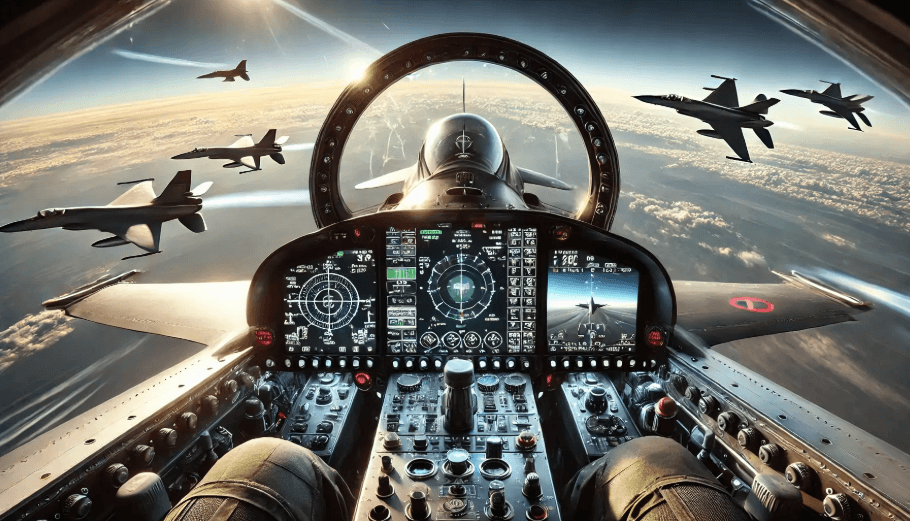
Flight simulators have evolved dramatically in recent years, offering breathtaking visuals that closely mimic real-world aviation. Whether you’re flying a commercial airliner, military jet, or private aircraft, the right graphics settings can significantly enhance immersion. However, achieving realistic visuals often requires more than simply maxing out every option. Strategic graphics tweaks can deliver stunning results while maintaining smooth performance.
Increase Terrain Level of Detail (LOD)
Terrain Level of Detail, commonly known as LOD, controls the distance at which highly detailed scenery remains visible within a simulation. Increasing the LOD setting allows mountains, urban skylines, and natural landscapes to retain greater clarity from farther away, resulting in a more immersive visual experience. Optimizing these settings can be especially useful for users who enjoy graphically demanding applications, including those accessed through an Aviator mobile app.
For realistic game play:
- Set Terrain LOD between 150 and 250 if your system can handle it.
- Increase Object LOD to improve building and vegetation detail.
- Avoid extremely high values if they cause stuttering during approach and landing.
Higher LOD settings create a more authentic experience, especially during low-altitude flights and sightseeing missions.
Optimize Cloud Quality
Weather plays a crucial role in flight simulation realism. Volumetric clouds add depth and realism to the sky but can heavily impact performance.
Recommended settings:
- Use High or Ultra cloud quality for realistic cloud formations.
- Enable real-time weather when available.
- Reduce cloud quality slightly if flying in storm-heavy environments causes frame drops.
Well-rendered clouds improve immersion and make weather-based decision-making feel more realistic.
Enable High-Quality Anti-Aliasing
Jagged edges can break immersion, especially around aircraft surfaces and airport structures.
Popular options include:
- DLAA for maximum image quality.
- DLSS Quality mode for NVIDIA RTX users seeking a balance between visuals and performance.
- TAA for users without DLSS support.
Experiment with different anti-aliasing methods to find the best combination of sharpness and smooth frame rates.
Improve Texture Resolution
Aircraft cockpits and airport environments benefit significantly from higher texture settings.
For the best experience:
- Use High or Ultra texture resolution if you have sufficient VRAM.
- Prioritize cockpit texture quality for better instrument readability.
- Keep textures filtering at 16x anisotropic filtering for sharper ground textures.
Detailed textures make every flight feel more authentic, especially during pre-flight procedures and instrument operations.
Fine-Tune Shadow Settings
Realistic shadows contribute significantly to depth perception and visual immersion.
Recommended tweaks:
- Set shadow maps to High.
- Use contact shadows where available.
- Avoid Ultra shadow settings on mid-range hardware, as performance gains are often minimal compared to the visual cost.
Balanced shadow settings create realistic lighting without unnecessary performance penalties.
Adjust Ambient Occlusion
Ambient Occlusion adds subtle shadowing where objects meet, enhancing realism throughout the environment.
Benefits include:
- More realistic cockpit interiors.
- Better depth around airport buildings.
- Improved visual contrast in complex scenes.
Medium to High settings typically offer the best balance between realism and performance.
Use Realistic Lighting Settings
Modern flight simulators feature advanced lighting systems that can dramatically affect visual quality.
For enhanced realism:
- Enable HDR if your display supports it.
- Use realistic brightness and gamma settings.
- Avoid overly saturated color profiles.
Accurate lighting improves visibility during sunrise, sunset, and nighttime operations while maintaining a natural appearance.
Increase Traffic and Airport Detail Carefully
Living airports contribute greatly to immersion.
Consider enabling:
- AI aircraft traffic.
- Ground service vehicles.
- Airport workers and support equipment.
However, excessive traffic can impact performance at large international airports. Gradually increase traffic density until you find a comfortable balance.
Install High-Quality Scenery Add-Ons
Default scenery can often be improved with third-party enhancements.
Popular upgrades include:
- Photorealistic terrain packages.
- Enhanced airport scenery.
- Improved city landmarks.
- Better vegetation and tree models.
These add-ons can transform familiar locations into highly realistic environments and significantly improve visual immersion.
Utilize Reshade or Visual Enhancement Tools
Many simulator enthusiasts use post-processing tools to improve image quality.
Common enhancements include:
- Sharper image clarity.
- Improved color grading.
- Better contrast.
- Enhanced atmospheric effects.
Avoid excessive sharpening or saturation, as overly aggressive settings can reduce realism rather than improve it.
Optimize Frame Generation and Upscaling Technologies
Modern graphics cards support technologies that can boost performance while preserving visual quality.
Examples include:
- NVIDIA DLSS Frame Generation.
- AMD FSR.
- Intel XESS.
These technologies allow users to maintain higher graphics settings and smoother gameplay, particularly in demanding environments.
Conclusion
The most realistic flight simulator experience comes from balancing visual quality and performance rather than maximizing every setting. Prioritize terrain detail, cloud rendering, texture quality, lighting, and anti-aliasing to achieve the biggest gains in realism. Combine these tweaks with quality scenery add-ons and proper monitor calibration, and your virtual flights will look remarkably close to the real world. By carefully adjusting graphics settings to match your hardware capabilities, you can enjoy immersive, realistic gameplay while maintaining the smooth performance essential for safe and enjoyable flying.